
Overheating is a common issue many gaming PC users face, often leading to performance drops, system crashes, or hardware damage. Understanding and resolving these cooling problems can ensure your system runs optimally and extends its lifespan.
Recognizing the Signs of Overheating
Before diving into solutions, it’s crucial to recognize the symptoms of an overheating gaming PC. Common signs include unexpected shutdowns, frequent crashes, loud fan noises, or performance throttling during intensive tasks. Monitoring software can provide real-time temperature data, alerting you when your system is reaching critical levels.
Common Causes of PC Overheating
Poor Airflow
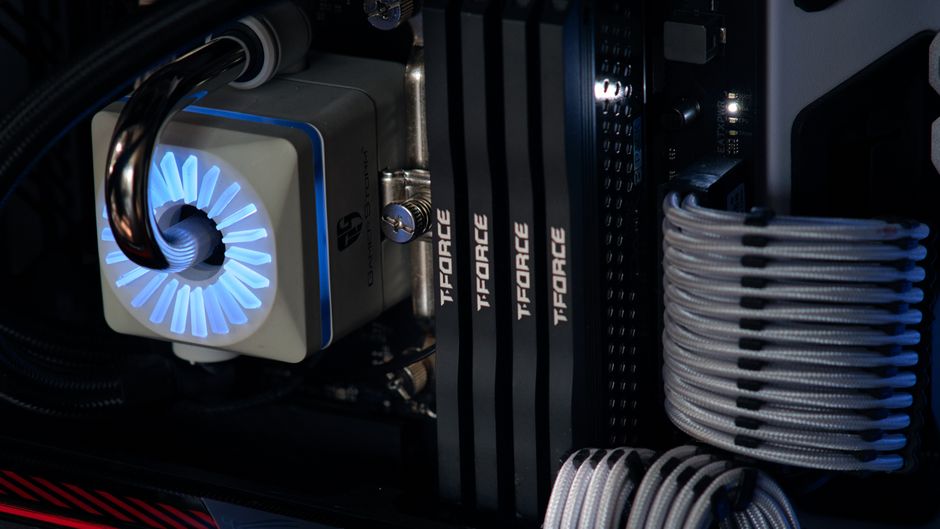
One of the most frequent causes of overheating is inadequate airflow. If your PC case is cluttered with cables or lacks sufficient ventilation, hot air cannot escape effectively. This can be addressed by organizing cables and ensuring that there are unobstructed paths for air to flow.
Dust Accumulation
Dust build-up is another major factor that hinders proper cooling. It can block vents and accumulate on fans, reducing their efficiency. Regular cleaning using compressed air helps keep dust at bay and ensures components like heatsinks and fans can function properly.
Insufficient Cooling Components
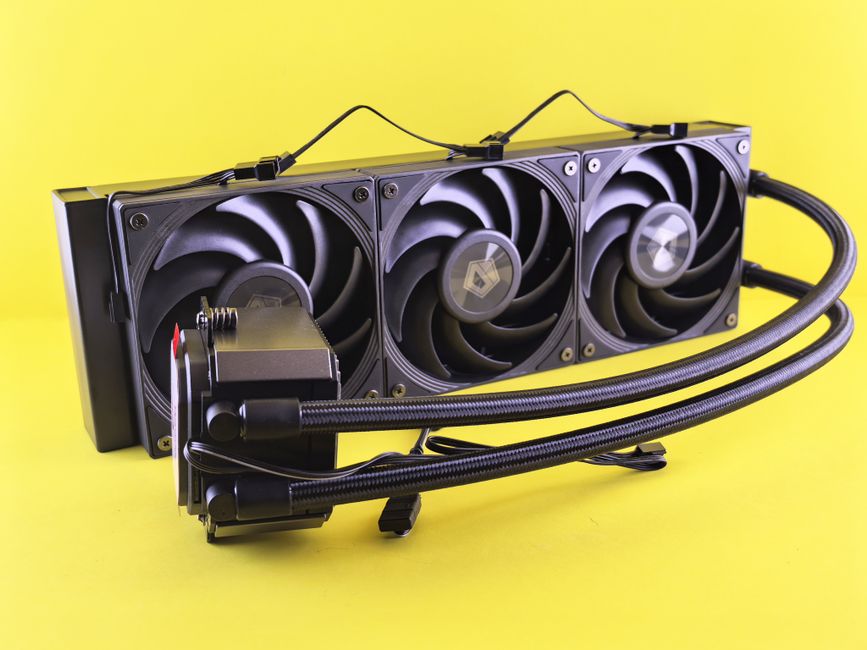
Sometimes, the cooling components themselves may not be adequate for the hardware. Stock coolers might not handle high-performance CPUs or GPUs properly. Upgrading to more efficient cooling solutions, such as larger aftermarket air coolers or liquid cooling systems, can solve this issue.
Step-by-Step Troubleshooting Guide
1. Check for Proper Airflow
Open your PC case and assess the internal layout. Ensure that cables are neatly managed and do not obstruct airflow. Adjust fan placements if necessary to create a clear path for air to travel from front to back or bottom to top of the case.
2. Clean Dust from Components
- Turn off your PC and unplug it from the power source.
- Use compressed air to blow out dust from fans, heatsinks, and vents.
- Be gentle with components and avoid using a vacuum cleaner, which can generate static electricity.
3. Evaluate Cooling Solutions
If cleaning and organizing don’t solve your problem, evaluate your cooling setup. Consider upgrading to a more effective CPU cooler or adding additional case fans. For high-performance needs, liquid cooling systems offer superior heat dissipation.
4. Apply Thermal Paste
Over time, thermal paste can dry out, reducing its effectiveness. Reapplying thermal paste between the CPU and its cooler can improve heat transfer. Make sure to use a high-quality paste and follow application instructions for optimal results.
Preventative Measures
Regular Maintenance
Regularly cleaning your PC and checking fan functionality can prevent overheating. Set a schedule, perhaps every few months, to clean out dust and reapply thermal paste as needed.
Monitoring Tools
Utilize monitoring tools to keep an eye on your system’s temperatures. Many free and paid software solutions can alert you to rising temperatures, allowing you to address issues before they become problematic.
Common Mistakes to Avoid
Avoid placing your PC in cramped spaces where airflow is restricted. Ensure that any additional fans are installed correctly; fans should align with airflow patterns to be effective. Lastly, don’t ignore the signs of overheating, hoping they will resolve on their own—problems typically worsen over time.
Conclusion
By understanding the causes of overheating and implementing the steps outlined, you can maintain a cooler, more efficient gaming PC. Regular maintenance and monitoring will not only enhance performance but also prolong the life of your hardware.

Unlock Full Article
Watch a quick video to get instant access.