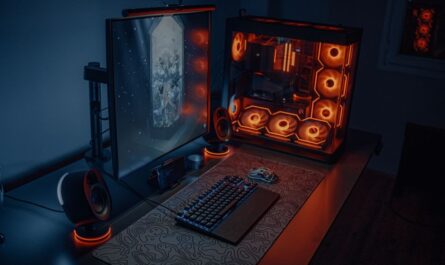
For PC gamers looking to personalize their setup, RGB lighting can be a game-changer, transforming a regular station into a vibrant, dynamic gaming environment. This guide walks you through customizing RGB lighting effects, covering software options and practical tips for creating your unique lighting experience.
Understanding RGB Lighting Basics
RGB lighting refers to the use of red, green, and blue LEDs to produce a wide range of colors through mixing. This technology is widely used in gaming peripherals and PC components, allowing users to create immersive lighting effects tailored to their preferences. Understanding this basic principle is essential for effective customization.
Choosing the Right Components
Your first step is selecting hardware that supports RGB lighting. Many gaming keyboards, mice, headsets, and PC cases come equipped with RGB capabilities. Ensure that the components you choose are compatible with each other or can be controlled by a single software suite. Popular brands like Corsair, Razer, and Logitech offer ecosystems that seamlessly integrate RGB across different devices.
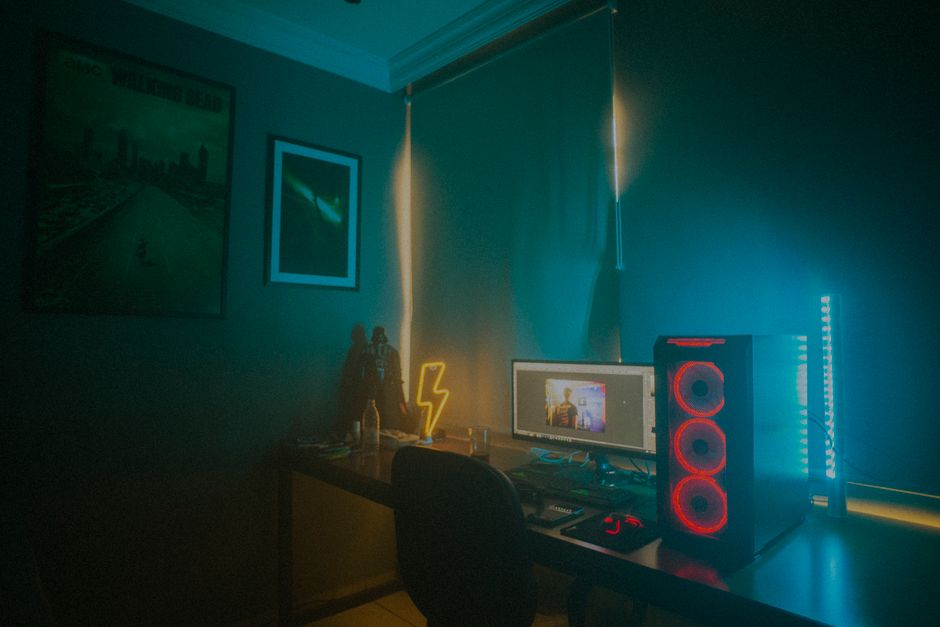
- Check compatibility across brands and devices.
- Consider components with addressable RGB for more intricate control.
- Ensure your power supply can handle additional RGB components.
Installing the Necessary Software
Once you have compatible hardware, the next step is installing the appropriate software to control your RGB lighting. Most manufacturers provide their own proprietary software, which is designed to work seamlessly with their products.
Popular Software Options
Here are a few popular options:
- Corsair iCUE: Known for its user-friendly interface, iCUE allows deep customization of Corsair products.
- Razer Synapse: This software offers extensive customization options for Razer peripherals.
- RGB Fusion: Designed for GIGABYTE products, this software integrates RGB control across their hardware.
- Logitech G HUB: Offers customization for Logitech devices, focusing on ease of use and personalization.
Ensure you download the latest version of your chosen software from the manufacturer’s website for optimal performance and compatibility.
Customizing Your RGB Effects
With your software installed, you can now start customizing your RGB lighting effects. Most software options allow you to choose from preset effects or create your own. Here’s how to get started:
Using Preset Effects
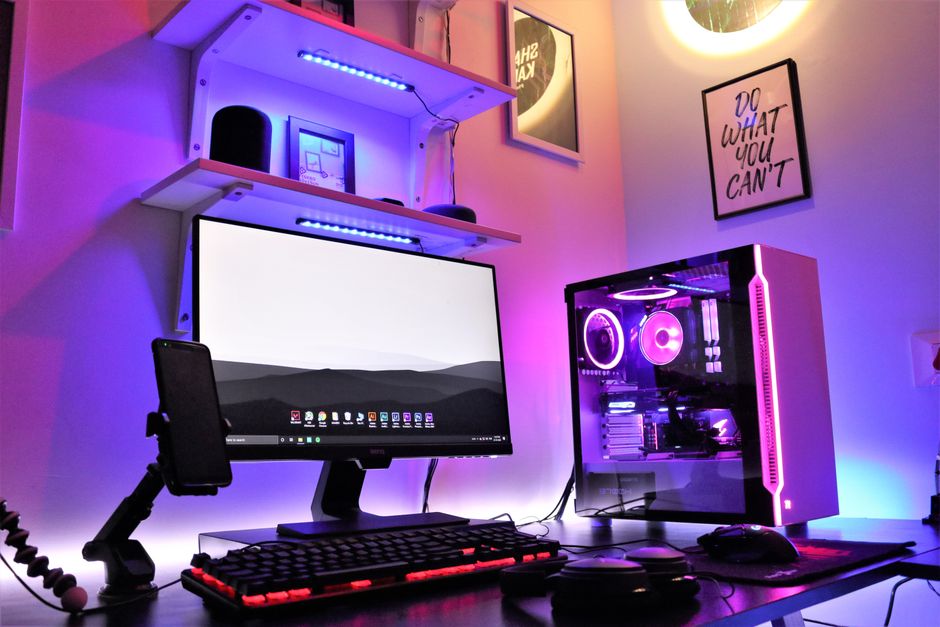
Most RGB software comes with a variety of preset effects such as breathing, cycling, and static colors. These are great for users who prefer a quick setup. Simply select the desired effect, adjust the speed and brightness to your liking, and apply it across your devices.
Creating Custom Effects
For a truly personalized experience, consider creating custom effects. This process usually involves:
- Selecting individual LEDs or zones on your device.
- Choosing specific colors for each zone.
- Setting transitions or animations, such as fading or pulsing.
- Linking effects to in-game actions or PC performance metrics like CPU temperature.
Experiment with different combinations to find what best enhances your gaming setup.
Tips for Personalization
To achieve a lighting setup that truly reflects your style, consider these personalization tips:
- Match your lighting to your game: Set up profiles with lighting effects that align with the theme of the game you are currently playing.
- Sync with music: Many RGB software options can synchronize with music, creating a dynamic atmosphere that enhances your gaming sessions.
- Use ambient lighting: Incorporate RGB strips or lamps around your setup for additional ambient lighting that complements your primary setup.
- Explore community presets: Many software platforms have online communities where users share their customized profiles. This can be a great source of inspiration.
Common Mistakes to Avoid
While setting up your RGB lighting, there are a few common pitfalls to watch out for:
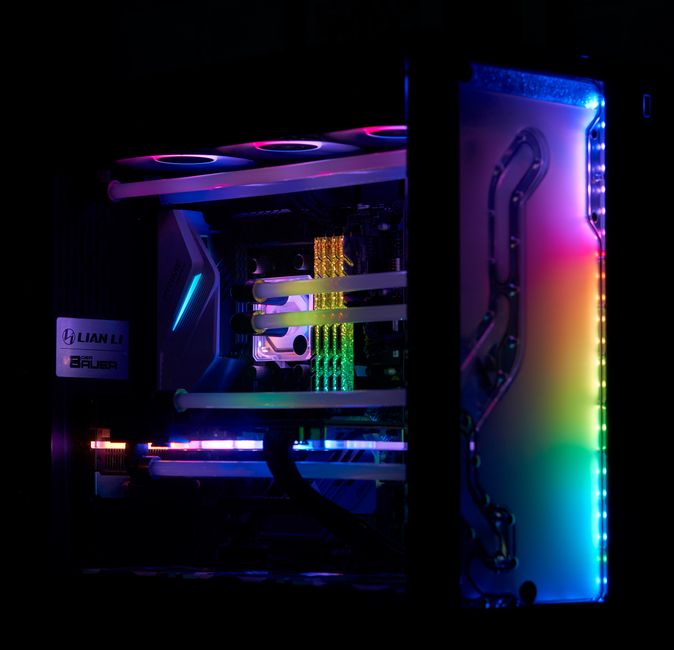
- Overusing effects: Too many active effects can become distracting or overwhelming.
- Ignoring cable management: Poorly managed cables can detract from the aesthetic appeal of your setup.
- Not updating software: Outdated software can lead to compatibility issues and bugs. Regularly check for updates to ensure smooth operation.
- Inadequate hardware support: Ensure your motherboard supports the RGB components you’ve selected to avoid any functionality issues.
Conclusion
Customizing RGB lighting effects can significantly enhance your gaming environment, making it not only visually appealing but also personally meaningful. By choosing the right components and software and following this step-by-step guide, you can create a setup that reflects your unique style and enhances your overall gaming experience. With creativity and a bit of experimentation, your gaming station can become an immersive space that inspires and excites.

Unlock Full Article
Watch a quick video to get instant access.