For PC gamers looking to enhance their gaming experience, optimizing the settings on your gaming TV can make a significant difference. Rather than just relying on the out-of-the-box settings, a few adjustments can maximize performance and visual quality. This guide will walk you through the steps to get the most from your gaming TV.
Understanding Your TV’s Game Mode
Most modern TVs come with a game mode feature, specifically designed to reduce input lag. Input lag refers to the delay between pressing a button on your controller or keyboard and seeing the result on your screen. Activating game mode can significantly improve your gaming performance by reducing this delay.
How to Enable Game Mode
To enable game mode, navigate to your TV’s settings menu. This is usually found under the picture or system settings. Once there, look for an option labeled ‘Game Mode’ or something similar. Activating this mode is often as simple as toggling a switch, but consult your TV’s manual if you have trouble locating it.
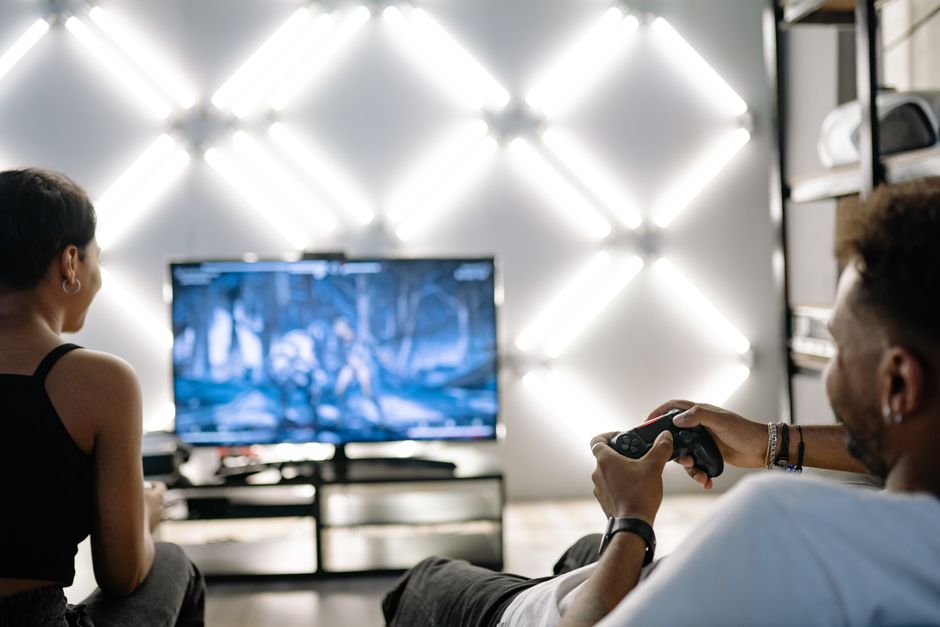
Considerations When Using Game Mode
While game mode reduces input lag, it can sometimes result in reduced picture quality due to the disabling of certain post-processing effects. If you notice a significant drop in picture quality, try adjusting other settings such as brightness or contrast to regain some visual fidelity.
Adjusting the Picture Settings
To achieve the best possible image for gaming, you’ll need to fine-tune your TV’s picture settings. These adjustments can help provide clearer details and more vibrant colors, enhancing your overall gaming experience.
Brightness and Contrast
Start by adjusting the brightness and contrast levels. Brightness affects the darkest parts of the image, while contrast deals with the brightest parts. You want a balance that allows you to see details in both dark and light areas without making the image appear washed out.
Color Settings
Proper color settings can enhance your gaming visuals. Adjust the color saturation to make the colors more vibrant but natural. If your TV has advanced settings like color temperature, aim for a neutral setting to avoid overly warm or cool tones unless the game’s aesthetics benefit from it.
Fine-Tuning Advanced Settings
Once you’ve optimized the basic picture settings, explore your TV’s advanced options to further enhance your gaming experience. These settings can vary greatly between models, but some common adjustments include motion smoothing, sharpness, and backlight control.
Motion Smoothing
Many TVs have a motion smoothing feature designed to make fast-moving scenes appear more fluid. However, this can sometimes create an unnatural look, known as the ‘soap opera effect’, which might not be ideal for gaming. Consider disabling it for a more authentic gaming experience.
Sharpness
Adjusting the sharpness setting can impact how crisp the images appear. Too much sharpness can introduce unwanted artifacts, so it’s usually best kept at a moderate level that brings out details without distortion.
Backlight Control
Backlight settings control how bright the screen itself appears. Increasing the backlight can help in well-lit rooms, but too much can cause eye strain or wash out colors. Adjust this based on your room’s lighting conditions for optimal viewing.
Synchronizing with Your PC
To ensure your TV and PC are working harmoniously, make sure the resolution and refresh rate settings match. This can prevent screen tearing and ensure smoother performance.
Resolution and Refresh Rate
Check that your TV’s resolution matches the output resolution set on your PC. Most modern TVs support 1080p or 4K, and aligning these with your PC settings ensures clarity. Additionally, check the supported refresh rate; a higher refresh rate can result in smoother motion.
If your TV supports Variable Refresh Rate (VRR), enable it to allow your TV to dynamically adjust the refresh rate to match your game’s frame rate, reducing tearing and stuttering.
Common Mistakes to Avoid
Even with the best intentions, common mistakes can hinder your gaming experience. Here are a few to watch out for:
- Ignoring Firmware Updates: Always keep your TV’s firmware updated to benefit from performance improvements and new features.
- Overlooking Ambient Light Conditions: Adjust settings based on the room’s lighting to prevent eye strain and ensure visibility.
- Excessive Adjustments: Making too many changes at once can lead to an unbalanced image. Adjust settings incrementally and test as you go.
Conclusion
Optimizing your gaming TV settings involves understanding and adjusting game mode, picture settings, and advanced features to match your gaming needs. By tailoring these settings, you can enjoy a more immersive and responsive gaming experience that showcases the full potential of both your PC and your TV.

Unlock Full Article
Watch a quick video to get instant access.